
You take a sharp photo, upload it, and on the feed it looks soft — smeared detail, muddy shadows, banding in a clear sky. The version on your phone is fine. Large social platforms typically process the images you upload to keep pages light, so some quality loss can be built in. The blur you can actually do something about comes from a handful of avoidable mistakes that stack on top of it.
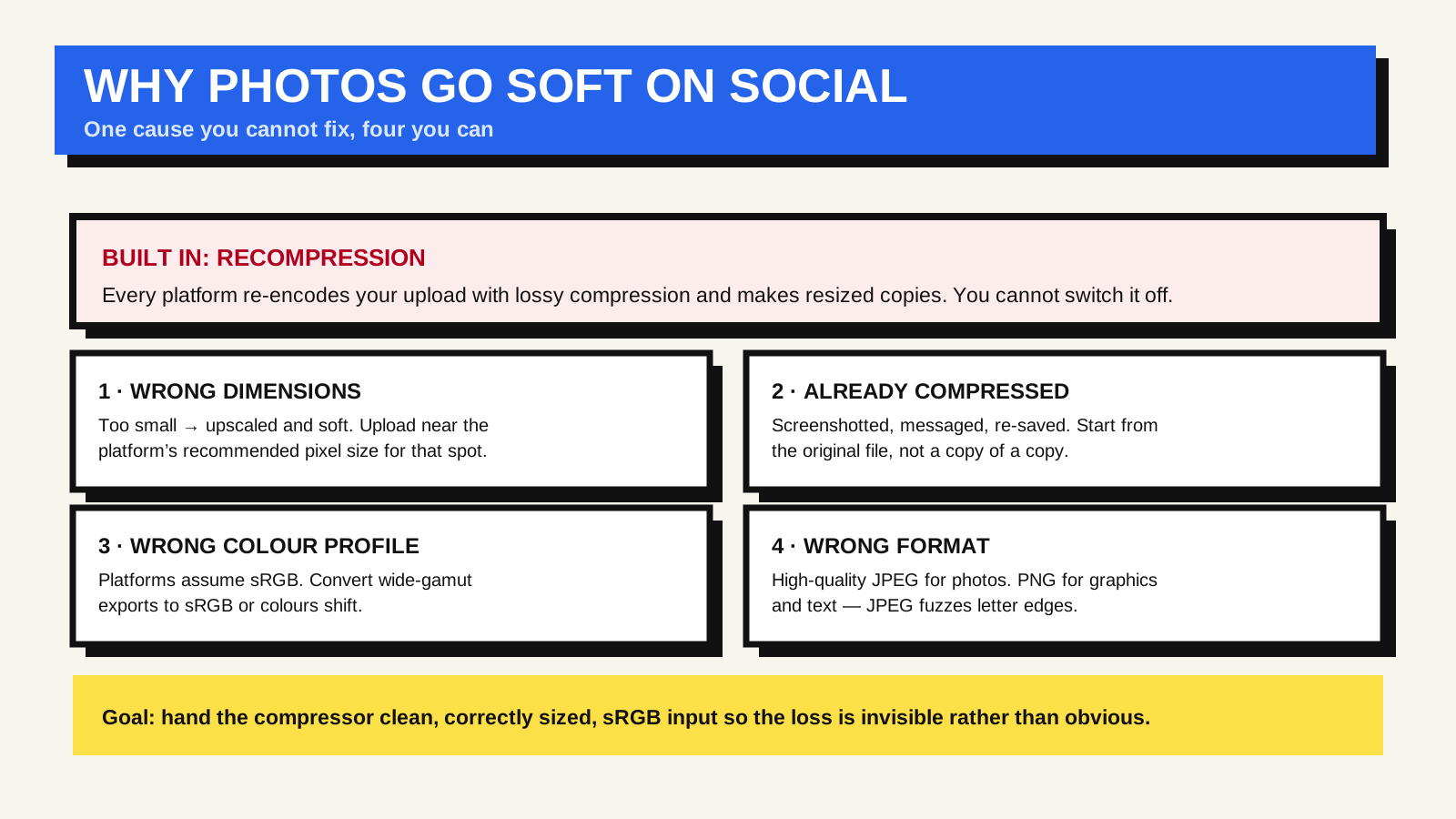
The unavoidable part: recompression
Most large platforms do not simply display the file you upload. They resize images, often re-encode them with lossy compression, and serve smaller copies to different screens, because lighter images mean faster feeds and lower bandwidth costs. The exact treatment differs by platform and is rarely documented in detail, so this guide does not claim to know what any one of them does after upload. What you control is the starting point: hand whatever processing happens the cleanest, correctly sized, correctly coloured file you can.
Posting to Bluesky: the current image limits
If your photo is headed for Bluesky, start with the limits, because they are the part you can check. Bluesky's published schema for image posts allows up to four images per post, each file no larger than 2,000,000 bytes (about 2 MB), and each image can carry alt text. In April 2026 Bluesky doubled the file-size cap from 1 MB to 2 MB and raised the resolution photos render at from 2,000 to 4,000 pixels, according to TechCrunch's report on version 1.121. Guides that still say 1 MB are out of date. We have not verified how Bluesky handles an image larger than 4,000 pixels.
The avoidable parts
Uploading the wrong dimensions. If your image is smaller than the space the platform displays it in, it gets scaled up and looks soft. If it is enormously larger, the platform’s downscaling can add its own artefacts. Uploading close to the dimensions each platform recommends for that placement gives the cleanest result. As a rough guide, a square feed photo around 1080 pixels wide, and a landscape link-preview image around 1200 by 630 pixels, are widely supported starting points; check the current help pages for the platform you are using.
Starting from an already-compressed file. Every time a JPEG is saved, it loses a little more detail. A photo that has been screenshotted, sent through a messaging app, downloaded, and re-saved has been through several rounds of compression before the platform ever touches it. Work from the original camera file or a high-quality export, not a copy of a copy.
The wrong colour profile. Screens and social platforms assume images are in the sRGB colour space. A photo edited in a wider space such as Adobe RGB or Display P3 and uploaded without conversion can come out dull, oversaturated, or colour-shifted, because the platform reads the numbers as sRGB. Exporting or converting to sRGB before upload avoids it.
The wrong format for the content. Photographs belong in a high-quality JPEG, or a modern format the platform accepts. Graphics, screenshots, logos, and anything with text or hard edges belong in PNG — a JPEG of text produces visible fuzz around the letters. MDN's image file type and format guide covers which format suits which kind of image.
A practical upload routine
- Edit from the original file, not a re-saved copy.
- Export to sRGB.
- Resize to roughly the platform’s recommended dimensions for that placement.
- Use a high-quality JPEG for photos, PNG for graphics and text.
- Upload over a stable connection — some apps quietly drop to a lower-quality upload on a weak signal.
Even done perfectly, the feed version will not be pixel-identical to your original. The goal is to make the platform’s compression start from clean, correctly sized, correctly coloured input, so the loss is invisible rather than obvious.
How SkyyCast prepares over-limit images
Phone and camera originals can easily exceed 2 MB, so the file you attach may need to be exported smaller first.
SkyyCast's composer accepts JPEG, PNG and WebP images, up to four per post, and lets you pick source files of up to 30 MB. An image at or below 2,000,000 bytes is uploaded as it is. A larger one is prepared in your browser before upload: SkyyCast lowers the quality first, scales the image down only if that is not enough, and aims for a file of 1,950,000 bytes or less. Images prepared this way are also limited to 3,840 pixels on the longest edge, which is SkyyCast's own preparation setting, not a Bluesky requirement. A JPEG stays a JPEG; a PNG or WebP is re-encoded as WebP (or as a JPEG if the browser cannot produce WebP), and any JPEG result is drawn over a white background. SkyyCast's server then checks again that each image is a JPEG, PNG or WebP within the 2,000,000-byte limit, and the alt text editor for each image allows up to 2,000 characters. Preparing an oversized image re-encodes it, which can reduce quality, so you keep the most control by preparing the file yourself. To see whether an image is over the limit, and to prepare a copy without uploading it anywhere, use the Bluesky Image Size Checker. Resize to the pixel dimensions you need first, then adjust the JPEG quality until the file fits; reducing the pixel count usually saves more bytes than lowering quality. We have not verified how Bluesky's own servers process an image after it is uploaded, so treat the routine above as good input hygiene rather than a guarantee about the final rendering.
FAQ
Does posting a PNG keep photos sharper?
Not for photographs. Platforms usually re-encode a photographic PNG to a lossy format anyway, and the large upload can time out or be rejected. PNG helps for graphics and text, where lossless compression preserves the sharp edges.
Why does my link preview image look worse than my feed photos?
Link-preview images have their own dimension and aspect-ratio expectations, and platforms cache and re-crop them. The image comes from the linked page's Open Graph tags rather than from anything you attach to the post; the Open Graph protocol site documents those tags.
Is there a “high quality uploads” setting?
Some apps expose one, more often for video than photos, and it mainly affects uploads over mobile data. It is worth enabling, but it does not remove server-side recompression.