 SkyyCast
Bluesky's default handle looks like yourname.bsky.social. It works fine, but it ties your identity to Bluesky's own domain instead of something you actually own. If you already have a website, you can point that domain at your account instead, so your handle becomes yourname.com. The process is a DNS change, not a feature you toggle inside the app, and it takes about ten minutes once you know which record to add.
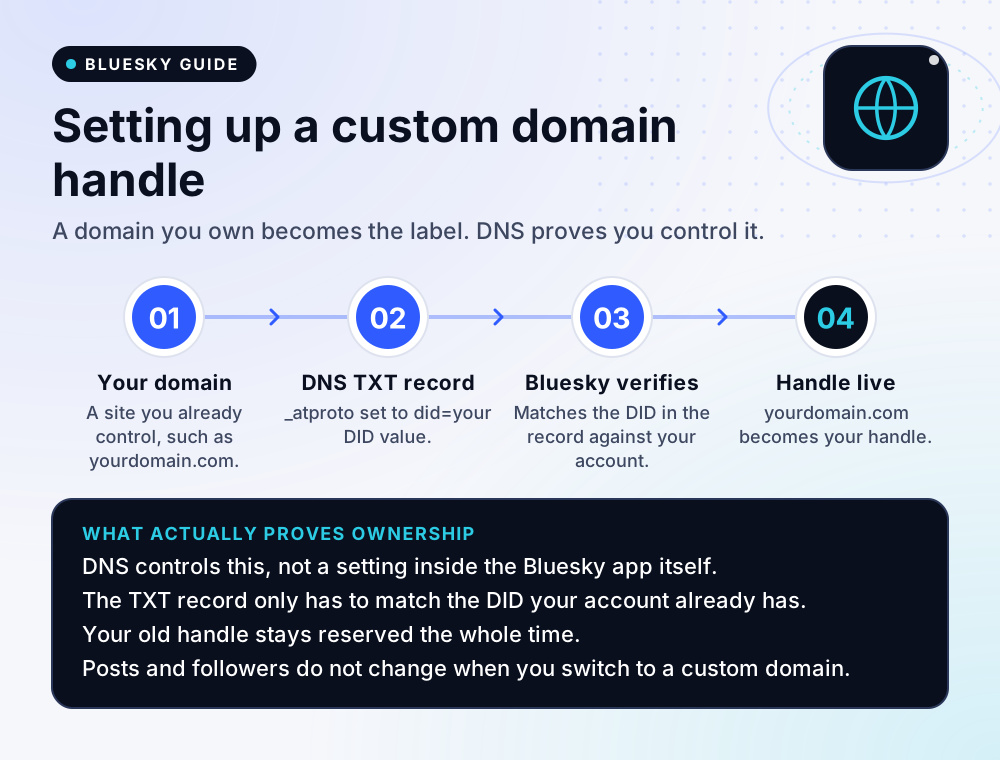
What a custom domain handle actually changes
A Bluesky account isn't really identified by its handle. Underneath, every account has a DID, a decentralized identifier that looks something like did:plc:ewvi7nxzyoun6zhxrhs64oiz. The handle is just a human readable label pointing at that DID. Changing your handle to a domain you own doesn't move your account, doesn't reset your followers, and doesn't touch anything you've already posted. It changes the label, not the thing being labeled.
What it does change is who controls that label. A .bsky.social handle exists because Bluesky's own DNS says so. A custom domain handle exists because your DNS says so, which means it can't be reassigned or taken away by a change in company policy. It's a small, concrete version of the ownership argument behind the AT Protocol itself, and worth reading alongside our piece on what the AT Protocol actually means for creators if you want the fuller picture.
What you need before you start
You need an existing Bluesky account, a domain you actually control the DNS for, and access to whatever dashboard manages that DNS, whether that's your registrar or a separate DNS host like Cloudflare. If someone else manages DNS for your domain, such as a web developer or an IT team, you'll need them to make the change or grant you access, since there's no way around editing DNS directly.
Setting it up with a DNS TXT record
Bluesky supports two ways to prove you own a domain. The one almost everyone should use is a DNS TXT record, and it works the same way regardless of which company you use for DNS.
In Bluesky's current settings flow, open the handle settings and choose the option for using your own domain, since the exact menu labels can shift over time. Bluesky will show you the DID that belongs to your account, something like did:plc:ewvi7nxzyoun6zhxrhs64oiz. Copy it exactly as shown. That string is what you're about to publish in your DNS.
Log into your DNS provider and add a new TXT record. The name, sometimes labeled host or subdomain in the interface, is _atproto. The value is did= followed by your DID, with nothing else added, so the full value reads did=did:plc:ewvi7nxzyoun6zhxrhs64oiz. Save the record.
If you want the handle on a subdomain rather than your root domain, for example ryan.example.com instead of example.com, the record name changes to match: _atproto.ryan instead of just _atproto. The value format stays identical either way. If the difference between a root domain and a subdomain isn't clear, our guide to the anatomy of a URL breaks down exactly where each part of an address like that comes from.
Give the change a few minutes to spread across the internet, then return to the handle screen in Bluesky and confirm your domain. Bluesky looks for that TXT record, matches the DID inside it against your account, and switches your handle over once it finds a match.
The alternative: a file at /.well-known/atproto-did
If you run a larger site, or you're setting this up for an organization that would rather manage things through code deploys than a DNS dashboard, the AT Protocol spec also allows a second method. Instead of a TXT record, you host a plain text file at https://yourdomain.com/.well-known/atproto-did containing nothing but your DID: no HTML, no extra text, no formatting.
The request has to happen over HTTPS and needs to come back with a successful response, and the specification expects a text/plain content type in that response. It also allows normal redirects, so a 301 or 302 along the way is fine, and it does not require that content type to be checked strictly, since what actually matters is that the correct DID comes back. This route generally makes more sense for engineering teams who can add a static route on demand than for someone setting up a personal domain, since publishing one DNS record is usually simpler than shipping a new page. If a domain somehow has both a TXT record and a well known file and the two disagree, the DNS record is what Bluesky trusts. Most people will never hit that situation, since you'd only set up both on purpose.
Confirming it actually worked
Once verification succeeds, your profile and existing posts show the new handle right away. You can also check independently of the app by looking at the handle shown at the top of your profile page, or by checking the DNS record directly. On a Mac or Linux machine, running dig TXT _atproto.yourdomain.com in a terminal shows exactly what your DNS is currently serving, which is the same thing Bluesky's servers see when they check.
What usually goes wrong
Most failed attempts come down to a handful of the same mistakes. The record type is wrong, because some DNS dashboards separate TXT records from CNAME or A records in a way that makes it easy to add the value to the wrong kind of record. The record name is wrong, often because the leading underscore in _atproto gets dropped, or the record ends up attached to the wrong subdomain level. The DID itself is wrong, usually a leftover from an earlier attempt, or with an extra space at the start or end of the value that isn't obvious just from looking at it. Or the change simply hasn't spread yet, since DNS updates aren't instant and some providers cache more aggressively than others.
One less obvious failure is adding the record in the wrong place entirely. If your domain's nameservers live with one company but your website is hosted somewhere else, the TXT record has to go wherever the nameservers actually point, not wherever the site itself is hosted. Those are frequently two different logins.
What happens to your old handle
Your original yourname.bsky.social handle isn't deleted. Bluesky reserves it once you switch to a custom domain, so nobody else can claim it and impersonate you later. Existing mentions and links that used your old handle keep working, because they were always resolving to your DID underneath, not to the literal text of the handle. If you ever remove the custom domain, you can move back to the bsky.social handle you had reserved.
When it's not worth doing
A custom domain handle is entirely optional, and it's fine to skip it. If you don't already own a domain, buying one purely for this reason usually isn't worth it unless you wanted a personal or brand domain anyway. It also assumes some comfort working inside a DNS dashboard, since a mistake there can affect other things tied to the same domain, like email delivery. If someone else manages your DNS, loop them in rather than guessing at settings you don't control yourself.
SkyyCast's own Bluesky account uses skyycast.com as its handle for this exact reason: it's a domain we control rather than one we're borrowing from Bluesky. That's a factual note about how our account happens to be set up, not a claim that Bluesky treats one kind of handle better than another. Getting the domain right is one part of a profile; if you haven't gone through the rest yet, our guide to optimizing your Bluesky profile covers the bio, avatar, and pinned post side of things.
A short checklist
Before you start, know your current DID, since Bluesky shows it to you during setup. Confirm you can actually edit DNS for the domain, not just the website content. Add the TXT record with name _atproto and a value of did= followed by your DID, exactly as shown. Wait a few minutes before trying to verify. And if verification doesn't go through right away, check the record directly with a DNS lookup tool before assuming something on Bluesky's side is broken. In almost every case, the record just needs a closer look.