
“Try clearing your cache” and “try clearing your cookies” are common troubleshooting advice, and they are not the same fix. Add local storage, and the browser has three separate places to keep information about a site, each with its own rules about size, lifespan, and whether the server ever sees it. Knowing which is which explains a lot of odd behaviour.
Cookies: small notes the server can read
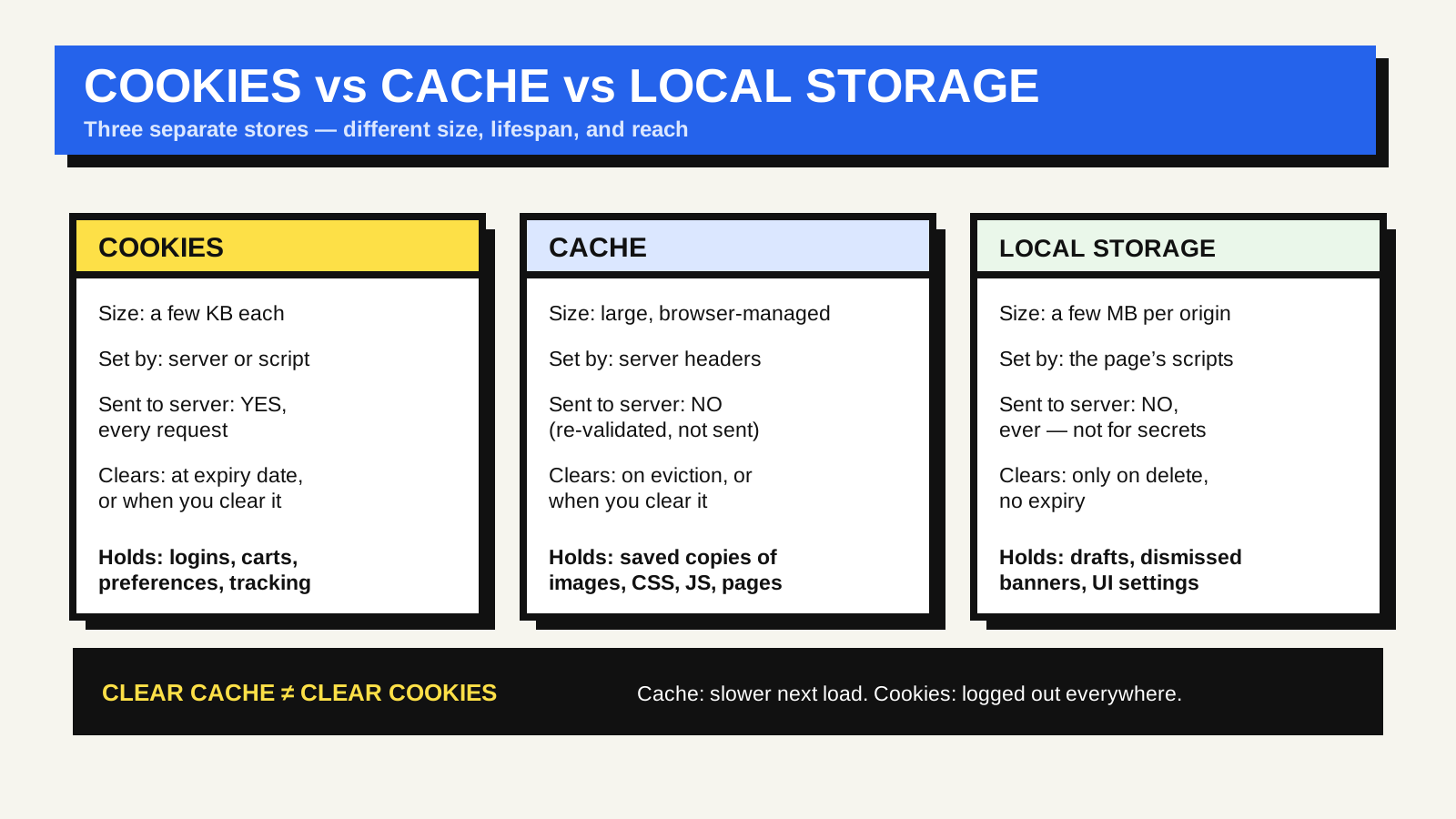
A cookie is a small piece of text — a few kilobytes at most — that a site stores in your browser and that the browser then attaches to every request it sends back to that site. That automatic round trip is the defining feature: cookies are how a site remembers that you are logged in, what is in your cart, or which language you picked, across page loads.
Cookies have an expiry date. A session cookie disappears when you close the browser; a persistent cookie lasts until the date it was given, or until you clear it. They can be marked so that JavaScript cannot read them (which protects login cookies from certain attacks), restricted to encrypted connections, and limited in whether they are sent on requests coming from other sites. Because they travel with every request, sites keep them small and few.
The cache: saved copies to avoid re-downloading
The browser cache is a store of copies of files the site already sent you — images, stylesheets, scripts, sometimes whole pages. On your next visit the browser can reuse the local copy instead of fetching it again, which is why a second visit to a site is usually much faster than the first.
You do not control the cache directly; the server does, through response headers that say how long each file may be reused and how to check whether it has changed. The browser also evicts old items on its own when space runs low. The cache is never sent back to the server as data — the browser just uses it, or quietly asks “has this changed?” before using it.
Local storage: a small key-value box for the page’s own code
Local storage is a simple store of text key-value pairs — on the order of a few megabytes — that a site’s JavaScript can read and write. It is scoped to one origin (one scheme, host and port), it has no expiry, and it stays until the code deletes it or you clear it. A draft you were typing, a dismissed banner, an interface preference, a theme choice: these are typical local-storage contents.
Two things make it different from cookies. It is never sent to the server automatically — only the page’s own scripts touch it. And any script running on that origin can read it, so it is not a place for anything sensitive such as tokens or personal data. A related store, session storage, works identically but is wiped when the tab closes.
So what does clearing each one actually do?
- Clear the cache: the next visit re-downloads assets, so it is briefly slower, and you see the newest version of files that were being served stale. You stay logged in.
- Clear cookies: you are logged out of sites, carts and preferences reset, and “remember me” is forgotten. This is the one that fixes a stuck or corrupted login.
- Clear local storage (usually bundled into “site data”): per-site app state is reset — drafts, dismissed prompts, in-page settings that were not tied to your account.
Where to read more
MDN documents all three in depth: HTTP cookies, HTTP caching and the Web Storage API. If you build sites, the caching behaviour also feeds directly into repeat-visit load performance.
FAQ
Is local storage more private than cookies?
Not really. It is not sent to the server automatically, but scripts on the page — including third-party ones — can still read it and send it wherever they like. It is also cleared less often than cookies because people rarely think to clear “site data”.
Why am I still logged in after clearing the cache?
Because your login lives in a cookie, not the cache. Clearing the cache only removes saved copies of files. To sign out everywhere, clear cookies for that site.
What about third-party cookies going away?
Browsers have been restricting cookies set by domains other than the one in the address bar, which mainly affects cross-site tracking. First-party cookies — the ones the site you are actually visiting sets for logins and preferences — are unaffected.